
Wallet
Create, import, fund, and manage your Solana wallet in your private chat with @TrenchyBot.
Open HQ → Manage Wallet in a private chat.
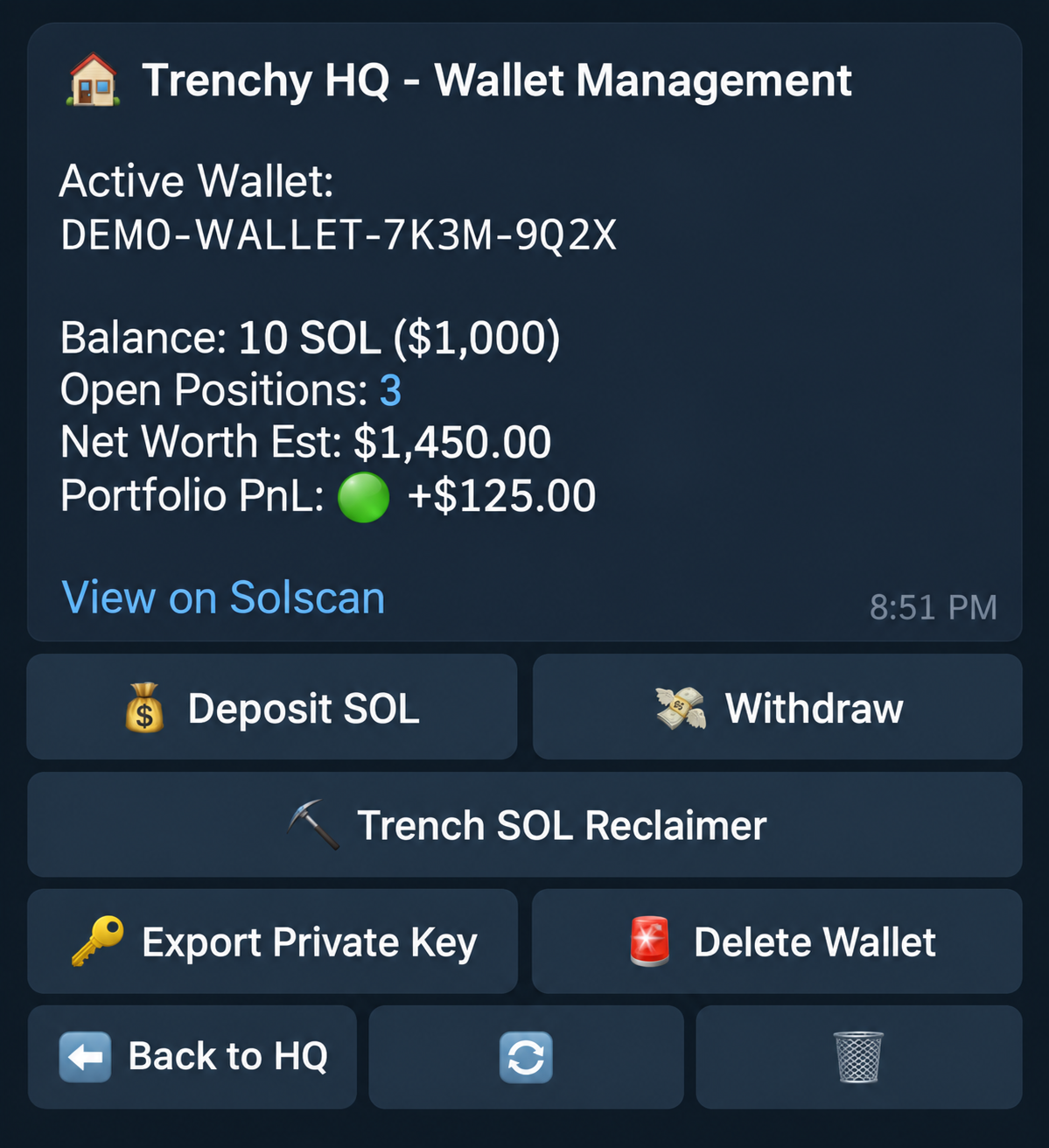
The panel shows your active address, SOL balance, open positions, estimated net worth, and tracked portfolio PnL. View on Solscan opens the active wallet’s explorer page.
A cached position value can appear first and update when fresher compatible data arrives. Refresh may reuse a recent price. Position value estimates your holdings at an available market price; a sell confirmation gives a separate trade quote. A last-known value may be marked Stale.
Set up
Section titled “Set up”- Create New: create a wallet, then fund its displayed address.
- Import New: use the explicit private-key import prompt.
- Recover Wallet: restore a previously disabled wallet linked to the same Telegram account. This option is available when you have no active wallet.
Importing a wallet linked to another Telegram account can ask you to migrate access. Review that prompt before accepting.
Deposit or withdraw
Section titled “Deposit or withdraw”Deposit SOL shows your actual wallet address. Copy it from the bot, never from an example image.
For Withdraw, choose an amount or percentage, enter a Solana destination, review the amount and fee reserve, then confirm. Check any pending transaction before retrying.
Other controls
Section titled “Other controls”| Button | Action |
|---|---|
| Trench SOL Reclaimer | Recover rent from eligible empty token accounts. |
| Export Private Key | Display your key after confirmation. Save it securely; the message is scheduled for deletion. Never send a key to support or a group. |
| Delete Wallet | Disable the active wallet without deleting its on-chain funds. You can restore it later with Recover Wallet on the same Telegram account, when no other wallet is active. |
| Back to HQ / 🔄 / 🗑 | Return to HQ, refresh the panel, or close the message. |