
Trading
Trading is in beta.
Expect minor changes as we incorporate user feedback and recommendations. Share your feedback in the Trench Lounge.
Buy and sell Solana tokens in a private chat with @TrenchyBot. Open Trench HQ to set up your wallet and trading preferences. EVM scanning does not include EVM trading.
💰 Trade With Trenchy on a Solana report opens that token’s trading flow.
- Send
/buy <token mint>or/b <token mint>, or send just/bto open Buy. You can also tap HQ → Buy and send the token’s Solana contract address. - Check the full mint, available market cap (MC), wallet balance, maximum slippage, and priority fee on the Buy panel. Tap 🔄 to refresh that panel, then choose a preset SOL amount or X SOL ✏️ for a custom amount.
- Wait while Trenchy fetches the latest route and fees.
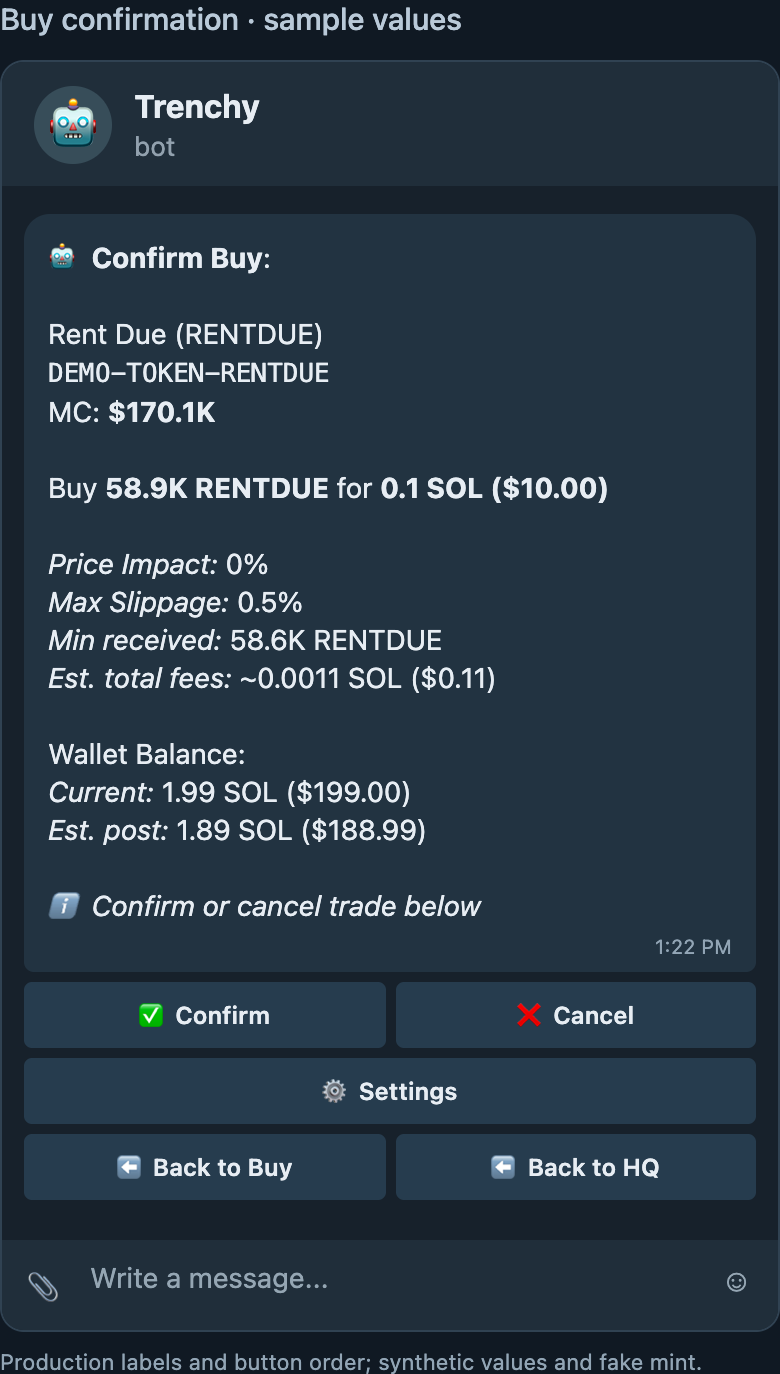
- Review Confirm Buy: the token, available MC, SOL spend, estimated tokens received, price impact, Max Slippage, Min received when available, Est. total fees, and estimated balance afterward.
- Tap Confirm to start a trade attempt, or Cancel to discard the quote. Settings lets you adjust trading preferences. Confirmation is not proof that a transaction was submitted or filled.
- Wait for the result. After Trade Successful, use View Position to open your holding or View on Solscan to inspect the transaction.
- Open HQ → Positions, or send
/positions, and select the token. - Tap Sell 25%, Sell 50%, or Sell 100%, or use Sell X% ✏️ for a custom percentage of your token balance.
- Wait for Preparing sell quote… to finish.
- Review Confirm Sell: tokens being sold, available MC, estimated SOL received, price impact, Max Slippage, Min received when available, Est. total fees, and estimated balance afterward.
- Tap Confirm to start the trade attempt and wait for the result. Use the transaction link to check it, then refresh your position to see the remaining balance.
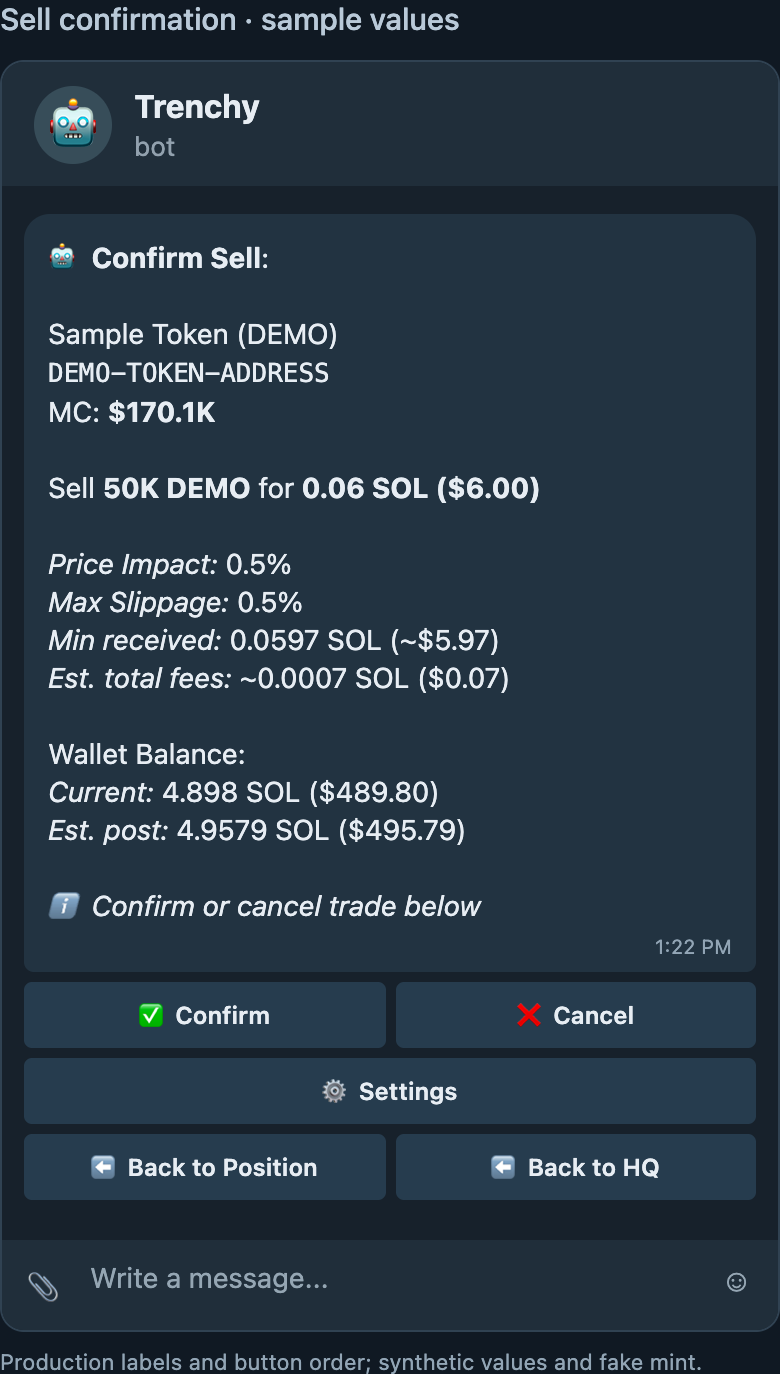
The examples use fake addresses and sample amounts. They illustrate the steps, not recommended trade sizes or settings.
Reading the quote
Section titled “Reading the quote”- MC: an observed estimate of the token’s market size, not a price at which you can execute. The separate quote estimates this specific trade; a confirmed transaction establishes the actual result. A ? means no usable MC was available for the confirmation.
- Price Impact: how much this trade itself changes the price in the pool. A larger trade in a small pool can get a worse price. Reducing the amount can help.
- Max Slippage: the maximum tolerance you set for this side of the trade. Trenchy tries to use a tighter effective tolerance when supported provider estimates allow it; the confirmation displays your maximum, not that internal effective value. It is not an extra fee. Slippage and priority fees explained.
- Min received: the minimum token output for a buy or SOL output for a sell that the transaction permits. The display may be rounded; the transaction enforces the precise amount. Its approximate USD value is a reference estimate, not a guaranteed dollar value. The difference between quoted output and minimum output is the slippage allowance, not a transaction fee.
- Est. total fees: estimated trade and network-related costs. Some costs are already reflected in the quoted amount; do not add the estimate again to infer proceeds. Actual charges are known from the confirmed transaction when evidence is available. Keep SOL available for additional costs, including when selling.
- Est. post: the estimated wallet balance after the trade and costs. The final confirmed amounts can differ from the quote.
Submitted, successful, or still updating?
Section titled “Submitted, successful, or still updating?”| Message | What to do |
|---|---|
| Preparing buy/sell quote… | Trenchy is fetching the route and fees; this temporary message has no action buttons. Wait for the confirmation or error, which has the appropriate controls. |
| Buy/Sell Submitted or Confirmation Pending | The transaction is awaiting confirmation. Wait, use Check status when available, or open its Solscan link. Do not submit another trade while the outcome is uncertain. |
| Trade Successful, with amounts showing … | The trade is confirmed, but its receipt or balance details are still loading. Use Check status or refresh your position; do not repeat the trade. |
| Buy/Sell Executed, with amounts filled in | Review the final amounts and open View Position or View on Solscan. |
| Trade Cancelled | That quote can no longer be confirmed. Request a new quote if you still want to trade. |
If a refreshed quote would reduce your approved minimum received, or your slippage settings have changed, review and confirm a new quote. Trenchy does not silently increase your maximum or weaken the approved minimum.
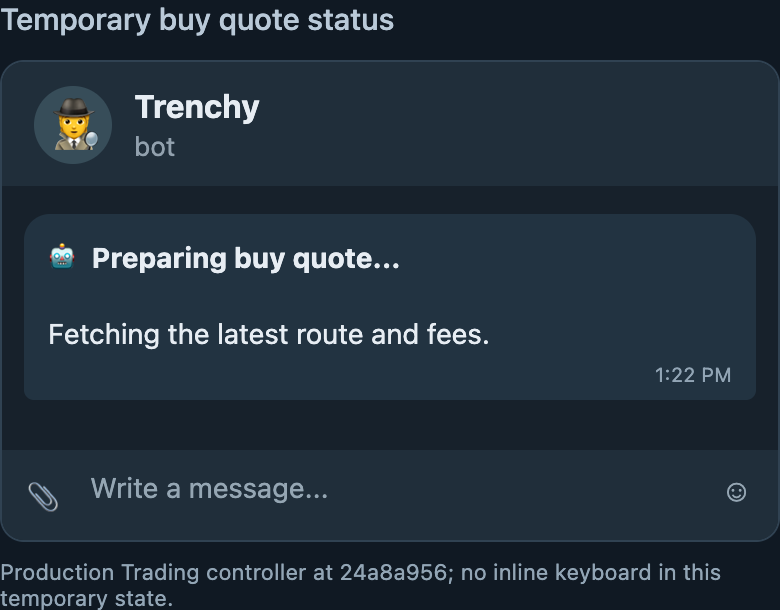
Cancelling a quote is different from reversing a transaction: once submitted, a trade cannot be undone with Back or by closing its message.
Position controls
Section titled “Position controls”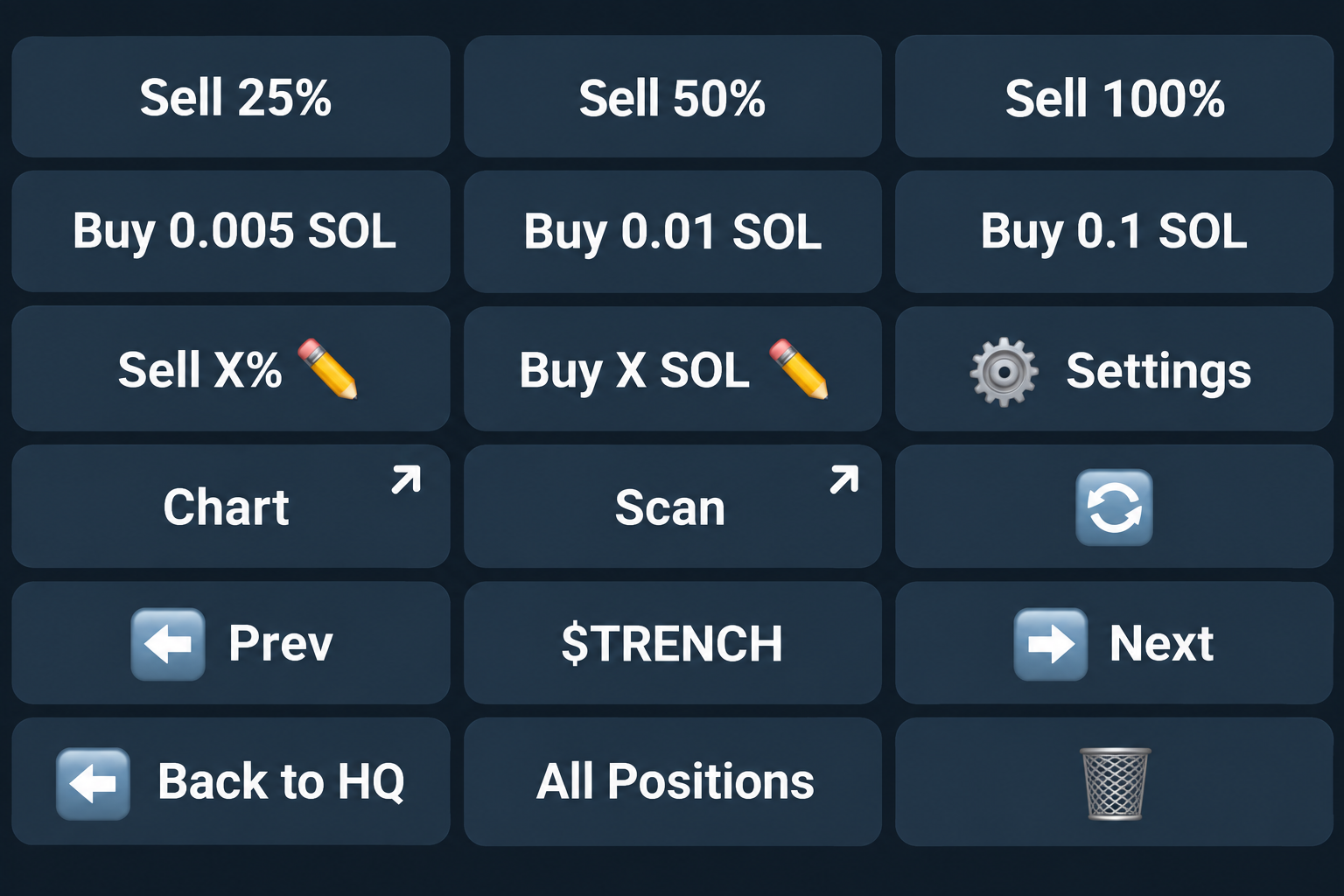
| Button | Action |
|---|---|
| Sell 25% / 50% / 100% | Sell that share of your token balance. |
| Buy … SOL | Buy using the preset SOL amount. |
| Sell X% / Buy X SOL | Enter a custom percentage or amount. |
| Settings | Change trading preferences. |
| Chart / Scan | Open the chart or request a Trench Report. |
| 🔄 | Refresh the Buy panel or position view. A recent cached market observation may be reused; a tap does not guarantee a new value. |
| Prev / token / Next | Move between positions; the middle label identifies the current token. |
| Back to HQ / All Positions / 🗑 | Open HQ, return to the list, or close the message. |
Your settings control preset amounts and confirmations. With Trade Confirm: Off, an eligible quote can submit automatically; additional impact or cost warnings may still require approval.
Positions can open from cached data and update after a bounded background read. An open Buy or individual position card may also update when newer usable market data arrives; the full positions list does not update continuously. Value estimates your held tokens at an available market price, not what selling the full balance would return. A whole-sale estimate, when used, says Est. Value. Entry, cost basis, and realized PnL follow recorded trades and confirmed fills rather than later MC changes.
A High fees for this trade confirmation keeps the quote details visible. Review the estimated fees and main cost, then choose Trade anyway, Lower priority fee when offered, or Cancel. Lowering priority only reduces that fee component; it does not remove other costs.
Buy Anyway / Sell Anyway, when offered, accepts the price-impact warning for that quote. It does not bypass your maximum slippage or minimum received. Review the expected proceeds before choosing it; a smaller sale may have less impact.